Saturday, December 8, 2018

Prodigy

What is Prodigy?
Image result for prodigy game
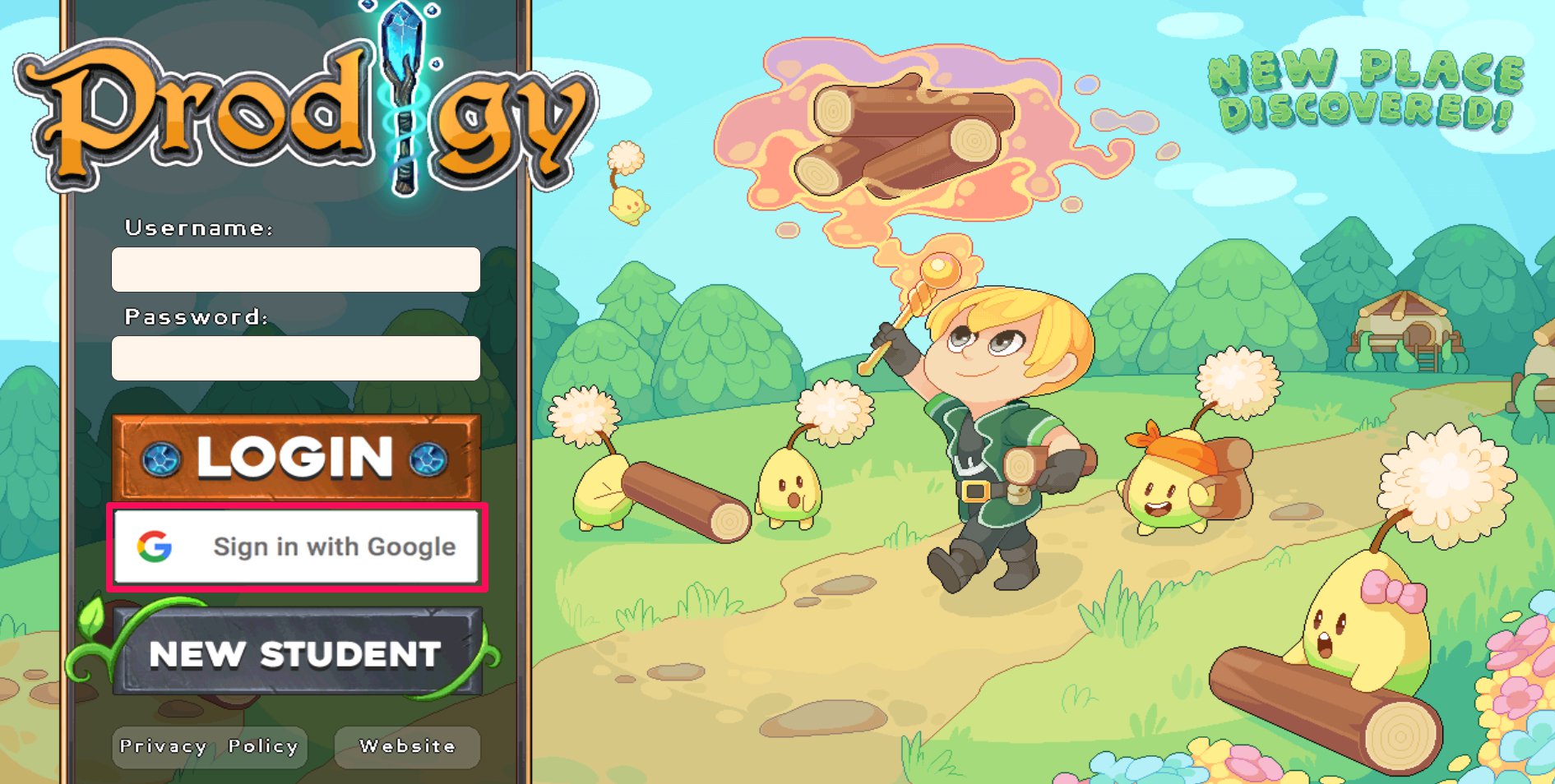
Prodigy is a free, online, curriculum-aligned math game for grades 1-8. Currently over 20 million teachers, students, and parents are using this online resource. Prodigy provides content from all major topics covering grades 1-8 to help ensure students are ready for standardized  testing. Prodigy provides diagnostic testing to place students in the correct grade, embedded assessments, and automatic differentiation. The site focuses on ensuring that each student succeeds at their own pace. Everything the students work on in Prodigy is reported back to the teacher. Which allows for the teacher to quickly see which skills their students have mastered, and where they may need some additional support.


How Does it Work?
Image result for prodigy gameTo use the site, is completely free. You can register as a teacher, student, or parent and from there all you need to do is provide your name and email. I signed up as a teacher. From there, you have the option to select the state and standards that you want to follow as well as the school that you are working with (if any). Then (if you signed up as a teacher), you can create "your classroom" which will help organize your class to make it easier to view their progress. You can decide to group the students by class or by learning level. Once the class is created, as a teacher you will be taken to your "dashboard". On the dashboard, there's an option to add students to the class. The student's will be given a code to connect to your class whether they already have an account or not. Once the student's are added, Prodigy will send a "placement test game" to help assign the students to the right level of learning and as the teacher, you will get a notification when that's complete. On the right side of the dashboard, there's a planner tab. This is where the teacher can align their math content and instruction with the Prodigy assignments and games. Also on the right side is the reports tab. The reports tab will give the teacher reports on each student's progress, comprehension, usage, weekly activity, placement test, topic coverage, and curriculum coverage. 

When playing the game, whoever is playing gets the option to choose their character and edit them. Then the player will have the option to choose "the world" that they want to play in. The game is designed in scenes. The player follows their character along and makes decisions for them. The game also narrates the scene and what the player needs to know for that part of the game. During the game, the character will encounter obstacles and in order to get past the obstacles, the player must answer a math question. For example when I played, the first question I was asked was "how many sides does a square have?" If you miss the question, you have the option to try again or see the answer. The math problem also has little clues that helps further explain information that the character may not know. 

Using Prodigy in the Classroom
Prodigy is a helpful resource when it comes to teachers creating a personalized learning environment in their classroom. In personalized learning, teachers focus on the student's individual needs and abilities. Justin Raudys mentions on Prodigy's blog page, 7 strategies to implement personalized learning.

  1. Train teachers how to assess students and customize their experience accordingly.
  2. Use Ed-Tech to create a personalized learning environment (like the Prodigy game).
  3. Allow students to have part in their learning experience.
  4. Give student's multiple opportunities to show their knowledge.
  5. Build personalized learning playlists.
  6. Make the classroom flexible.
  7. Flip instruction so students can learn at their own pace. 

For more specific ways to use Prodigy in the classroom, it depends on teacher and their classroom environment. Teachers can use the site game as a learning station. Teachers can also use the game as an entering or exit ticket. The teacher can create a plan for the day on Prodigy for the students to do the align with what they will be learning that day, addressing past knowledge, or "testing" them at the end of the day on the content learned that day. Assigning Prodigy for homework is another great way to use it, especially if the teacher is interested in using a flipped classroom. The student's can play the game as a way of homework to reinforce old skills or help teach new skills they are about to learn. This won't seem like homework to the student's because it's a game, so they will be more engaged than an assigned worksheet. 

Why Should You Use Prodigy?
In an article called Using Prodigy in the Classroom, they stated, "Without a doubt, Prodigy’s greatest strength is its ability to engage students. Because it presents itself like a real video game (rather than a math game website that’s obviously purely for learning), students are drawn into the world that Prodigy presents and are highly motivated to answer the math questions and progress through the game". The students liked the aspect of the challenge and getting more powerful spells and equipment, much like the appeal of an ordinary video game of that genre. Schools that use Prodigy are continuing to outperform others in their standardized assessments. More than 75% of students using Prodigy reach pass levels on their assessments and 40% of students reach the highest levels. Prodigy also offers comprehensive reports to educator allowing them to access data that shows growth, performance and engagement. The site also gives a versatile delivery of learning content. Along with all of that, the site is engaging to students, and students will often play because it's fun not because they are assigned to.

Resources
Mrhassen05, A. (2017, January 29). Using Prodigy in the Classroom. Retrieved from https://wealllearn2gether.wordpress.com/2017/01/21/first-blog-post/

Tuesday, December 4, 2018

Educreations

What is Educreations?
Image result for educreationsEducreations is an interactive whiteboard and screening tool that can be downloaded as an app. The app can only be downloaded free on an iPad or iPhone for the use of creating your own lessons but an iPad or iPhone isn't required to view other lessons others created. The app is free but there are other options with more resources that require payments. Educreations is currently being used by 50,000 schools, 5 million people, and 140 countries. On the app you can annotate, animate, and narrate nearly any type of content as you explain any concept. Teachers can create short instructional videos and share them instantly with students, or ask students to show what they know and help friends learn something new. The app allows you to create your ideas, share instantly, and replay anytime. 

How Does it Work?
First, you will need to download it onto a device with iOS, I downloaded the app on my iPad. Once it's downloaded, you're ready to get started with your lesson creation. You will see a white screen (your whiteboard) that you can start drawing, adding narration, and whatever else you'd like to do. At the top there are a few color options that you can choose from to write or draw with, as well as an eraser to fix any problems. At the very top right hand corner, there is tab that looks like lined paper. This allows you change the white board background (lined paper, graph paper, or coordinate grid). To the right of the color options is a plus button. This button allows you to add text that can also be changed in size and color. You can move the text anywhere on the screen just by using your finger. Also within the plus button is the option to add pictures. You can upload pictures from your photo library, drop box, google drive, and you can search for an image. You can move the picture as well as make is smaller or bigger by also using your finger. You can add as many pages as you'd like to your lesson, just by clicking the small arrow on the bottom right of the screen. The red microphone to the left of the colors, is where you can record voice and screen recordings as well as play it back to make sure you like the way it sounded. When you preview the video, you have the option to trim and make any edits to the video. 

Once you have finished your lesson creation, you can export your lesson by clicked the box with the arrow on the top left side of the screen. When you save the video, you will need to give it a title and address the subject and grade. This is also where you can make the lesson public or private. Once you select save, if you don't already have an account, this when you will sign up to make an account. At first thought it was strange that the app didn't ask me from the beginning to sign up, but then I thought that I actually liked that I was allowed to test out the app before having to create an account. When creating an account, you can select either as a teacher or student. From there, you just add the normal information like name, email, and password. After your account is created, your new lesson will be on the home screen. On the left side of the screen, there's the option to create a class, so that way student's can assess all lessons created for your class. Also on the left side is a star image. Clicking on the star will bring you to featured lessons that you can use as well. 

Using Educreations in the Classroom.
Image result for using educreations in the classroomEducreations is also best known for teachers using it for a flipped classroom. In a flipped classroom, the students typically learn the content on their own outside of the classroom and then the teacher uses the classroom time to help the students further understand and practice the content they just learned. This app allows you to create interactive lessons that students can watch and follow along easily outside of the classroom. The students also have the ability to replay and watch the instruction as many times as the need to. By using educreations for outside engagement, the parents of the students also get to be involved in what their student is learning and get to know your teaching style. Along with using this app for a flipped classroom, teachers can also use their creations for differentiated instruction in the classroom. Instead of teaching new content with simple lecture or writing on their own whiteboard, educreations allows for the content to still be taught but in a more engaging way. Adam Renfro stated "Let students learn from your own video as you navigate through the room acting as the facilitator to your own instruction, keeping students on task and providing live support where needed. They way teachers move about the classroom has been describe as a well choreographed dance, and that dance has changed with the introduction of technology into the classroom that allows students to work at their own pace and rate" (Getting Smart).

On the website All about apps in YOUR classroom!, Karen Foerch discusses the different ways Educreations can be used in the classroom that are specific to students. Educreations allows for students to get creative, assemble construct, design, develop, formulate, and write. With this app students can creative their own movie poster, make an advertisement, or even write and construct their own story or elaborate on a familiar one. The app can also be used for understanding information." Using Educreation in the science class, when given a picture of the solar system, students can identify the planets. When given a picture of a plant, they can identify the parts of a plant. Students can explain the steps to the scientific process. Using pictures, students can explain the life cycle of an animal, the rock cycle or the water cycle". 

Why Use Educreations?
Teachers have the opportunity to capture their ideas. You can record your voice and iPad screen to create dynamic video that students and colleges can access anytime needed.  Teachers also are able to use their own content by importing documents and pictures from your photo library, dropbox and google drive. You can also display a custom map, insert any webpage, snap a photo, or search the web for the perfect image, right within the app. The app also allows for you to share instantly not only within the app for other users to see but you can also share it to youtube, save to your google drive or camera roll, or even embed it into a website. Educreations allows for teachers to share video lessons to students in a safe and private classroom environment.

Resources
Renfro, A. (2013, April 11). Educreations: Adding Value to the Classroom. Retrieved from https://www.gettingsmart.com/2013/03/educreations-adding-value-to-the-classroom/

Educreations. (n.d.). Retrieved from http://www.appsinclass.com/educreations.html


Crazy About ClassDojo

What is ClassDojo?
Image result for class dojoClassDojo is an app designed for teachers, students, and parents to connect with one another during the school day. Today, millions of teacher from over 180 countries are using ClassDojo in their classroom. Teachers can share pictures, videos and messages throughout the day so everyone can work together to bring ideas to the classroom and home. ClassDojo creates a positive culture by giving teachers the ability to encourage students on any skill or value. It also allows for the students to showcase and share their learning by adding photos and videos to their own portfolios. ClassDojo is a safe and free app, that can downloaded on iOS, android, Kindle Fire, and any computer. 

How Does it Work?

When you sign up, you have the option to sign up as a teacher, student, parent, or school leader. The signing up process is pretty simple, asking for just your name, email and a password. Once you're signed up you have the option to select the school you're working with. From there you will be taken to a dashboard where you can select a new class to get your class started or selected the "demo class" option to practice the site before creating your own class. In order for the class to be created, the teacher must invite the students as well as the teachers. Students can get connected by retrieving a class QR code, a text code, or google sign in. To invite the parents, the teacher can either print off a parent invite with instructions given by the site, or invite by email or phone number. Whichever way the teacher decides to invite the parents, they will also receive a code to get into the classroom. 

Each student in the class will have their own character with their name. Each character as well as a "whole class" option will be shown when you first open your classroom on the site. At the top of your page you will see classroom (which is where the students characters are), portfolios, class story, and messages. Portfolios is where the teacher can assign activities for students to do own their own devices, as well as this where the student's work can be added after the teacher has approved it. The students and their parents have access to view their portfolio. The class story option works similar to social media sites, where you can post a message, photos, and files for anyone in the class to see. The messages tab is where any messages from parents to the teacher can be seen and communicated. For each student's character as well as "whole class", the teacher has the option to give positive points or take points away by "needs work". The teacher sees the different options by selecting the character. The teacher can edit the skills to whatever they want to match their class expectations. When you add or take away points, the teacher also has the option to write a post about it or message the students parents on the reason for the point. There is also an option to add your students characters into groups. At the bottom on the class screen there are other resources: toolkit, attendance select multiple, random, timer, and big ideas. Within the toolkit the teacher can access a timer, random shuffle, group maker, noise meter, directions, think pair share, today, and music. The big ideas tab provides ClassDojo created activities addressing social and emotional learning, ways to use ClassDojo, and creativity. 


Why Use ClassDojo in the Classroom?

Classroom management is a major component of having an effective classroom. When specifically trying to manage behavior in the classroom, it can be difficult to make sure the class isn't interrupted of their learning when a the teacher wants or needs to acknowledge positive or negative behavior. Tara, a third grade teacher described some ways that ClassDojo changed her class behavior management for the better. 
  • "I can add and remove points without disturbing the whole class. If a student earns or loses a point, I can just quietly tell him or her why the point was added or removed".
  •   "I can control behavior with one sound. When I’m meeting with a small group, I turn the volume on my computer up. That way, when I add or subtract points, the class hears a sound and knows I’m watching. One point added or removed gets the class back on task. In the beginning of the year, the kids stop and look for the sound, but they quickly realize they can’t see who earned or lost a point". 
  •   "I can choose the behaviors students have to display to earn and lose points. This year, my school is using 4 rules – be kind, be responsible, be respectful, and be ready to learn. My students earn points when they are displaying those behaviors".
  ClassDojo is also useful when it comes to sharing and obtaining data. The site keeps track of behavior points, attendance, and activities. The teacher can also decide to create reports that can be emailed to parents daily or weekly. The report is designed in a donut that shows the percentage of clicked behaviors and underneath a written version of the data for each day. This data can all be accumulated into end-of-year reports. Another teacher, Lisa, stated, "The parents of my students enjoy receiving the reports because it keeps them in the loop". ClassDojo also has a resource called trendspotter  which gives teachers trends of their students' behavior. This is great for teachers to use so that way they can see if certain days or certain times of the day, behavior is overall negative, the teacher can assess their classroom management and make changes accordingly. This is also great to take notice too if a student is acting negatively, the teacher may recognize if there are some environmental  factors playing a role, and the teacher can then work with the student to create more positivity. ClassDojo has many amount of resources that are beneficial to the teacher's management, the student's success, and the parent's involvement which overall can create a lasting positive classroom environment

    Resources
    Mims, L. (n.d.). Classroom Behavior? There's an App for That. Retrieved from https://www.edutopia.org/blog/classroom-behavior-classdojo-app-lisa-mims

    DuskoTara, T., Hanna, & Dusko, T. (2018, August 12). How to Use Class Dojo for Classroom Management. Retrieved from https://teachwithouttears.com/how-to-use-class-dojo-for-classroom-management/


    Prodigy

    What is Prodigy? Prodigy is a free, online, curriculum-aligned math game for grades 1-8. Currently over 20 million  teachers, students, ...